
How to Manage GoDaddy Website Files for Affiliate Marketing Success
Introduction: Why GoDaddy File Management Matters for Affiliate Marketing Success
Let me ask you something. Have you ever spent hours trying to find the right file on your GoDaddy hosting only to give up and move on to something else?
You are not alone.
For entrepreneurs using the Automated Affiliate Method, fast and reliable access to your Godaddy website files is not just nice to have. It is the difference between scaling your income and hitting a wall.

When you need to upload automation scripts, update content, or tweak your site settings, every minute spent hunting for files is money left on the table.
Think about it this way. Your website files are the engine room of your affiliate business. If you cannot get to them quickly and safely, your whole operation slows down. Poor file management leads to wasted time, security vulnerabilities, and scalability bottlenecks. These are exactly the pain points our ideal customers face every day.
Here is the truth. Most people starting out try to figure out how setup website files on their own. They search for "godaddy edit website" tutorials, watch a few videos, and still end up confused. They wonder how to setup your own website without breaking something important. They struggle with the godaddy website builder because they do not understand the file system underneath it.
That is where this guide comes in.
I have put together a structured, experience-backed workflow for navigating GoDaddy’s file systems. We will cover everything from cPanel to FTP, tailored specifically for affiliate site owners. No fluff. No guesswork. Just a clear path to getting your files under control.
GoDaddy uses cPanel hosting, which is the industry standard for managing websites. According to GoDaddy’s own documentation, you can manage all your hosting features and settings through this control panel. Understanding how to work with your cPanel environment is the first step to taking full control of your affiliate site.
Ready to stop wrestling with your files and start scaling your business? Let us dive into the exact steps you need to master your Godaddy website files.
1. Understanding GoDaddy Hosting Plans and Their File Access Features
Before you start digging into your files, you need to understand what kind of hosting plan you have. Each plan gives you different tools for managing your godaddy website files. Pick the wrong method and you will waste time or hit a frustrating dead end.
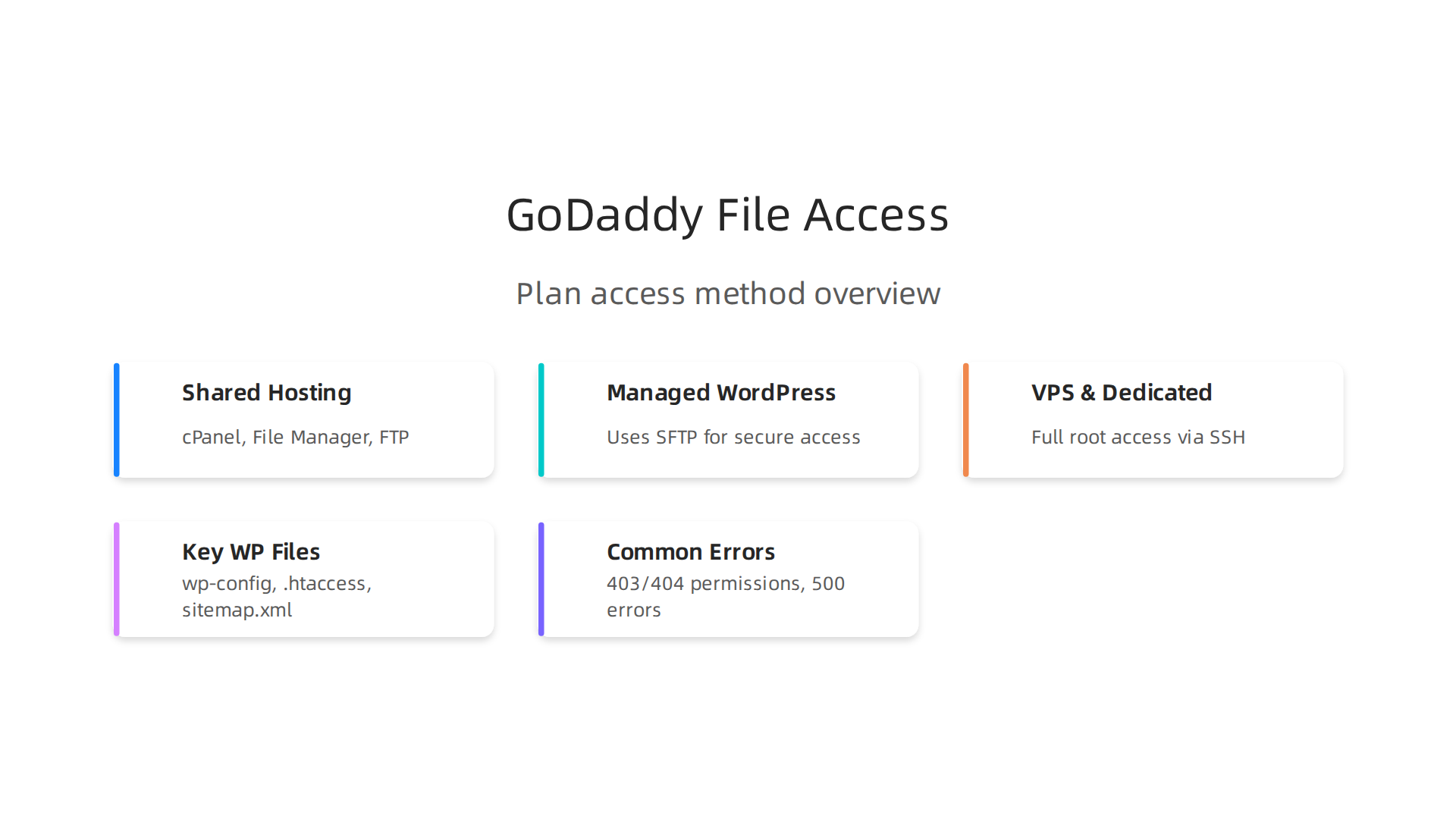
Here is a quick overview of the main GoDaddy plans and how they let you reach your files.
Shared Hosting (cPanel)
This is where most affiliate marketers start. It is affordable and comes with cPanel, an industry-standard control panel. With cPanel hosting, you can manage all your hosting features and settings from one simple dashboard.
For file access, you get two main options:
- File Manager: A web-based tool inside cPanel. You can upload, edit, and delete files directly through your browser. No extra software needed.
- FTP (File Transfer Protocol): A faster method using a program like FileZilla. You can set up FTP users through your GoDaddy account and then connect from your computer. GoDaddy has a straightforward guide on how to add FTP users to your web hosting account, which makes sharing access with a virtual assistant or developer simple.
FTP is especially useful when you need to upload many files at once or work with larger folders. The cPanel documentation explains how to create and manage these FTP accounts properly.
Managed WordPress Hosting
If you use the godaddy website builder for a WordPress site, this plan works a bit differently. Instead of regular FTP, it uses SFTP. SFTP is more secure because it encrypts your connection. You will need an SFTP client and your specific login details to access your files.
VPS and Dedicated Hosting
As your affiliate site grows, you may need more power. Shared hosting has limits. In fact, Web Hosting in 2026 statistics show that a one-second delay in page load time can hurt your conversions by 7%. When speed becomes an issue, it might be time to look at VPS or dedicated hosting.
These plans give you full root access and support SSH for command-line file management. It is more powerful but also more technical. Most entrepreneurs using the Automated Affiliate Method find that shared hosting with cPanel covers everything they need until their traffic scales significantly.
Knowing your plan type is the first step. Once you know what tools you have, you can follow the exact file management workflow that suits your business. If you want a repeatable system for your entire affiliate operation, check out the exact SOPs for affiliate business to boost profit and scale.
Next, I will walk you through the step-by-step process to access your files using the most common method.
2. Accessing GoDaddy Website Files via cPanel File Manager
Now it is time to get hands on. The easiest way to access your GoDaddy website files is through the cPanel File Manager. No extra software. No technical skills needed. You just need your login details and a browser.
Here is the simple step by step process.
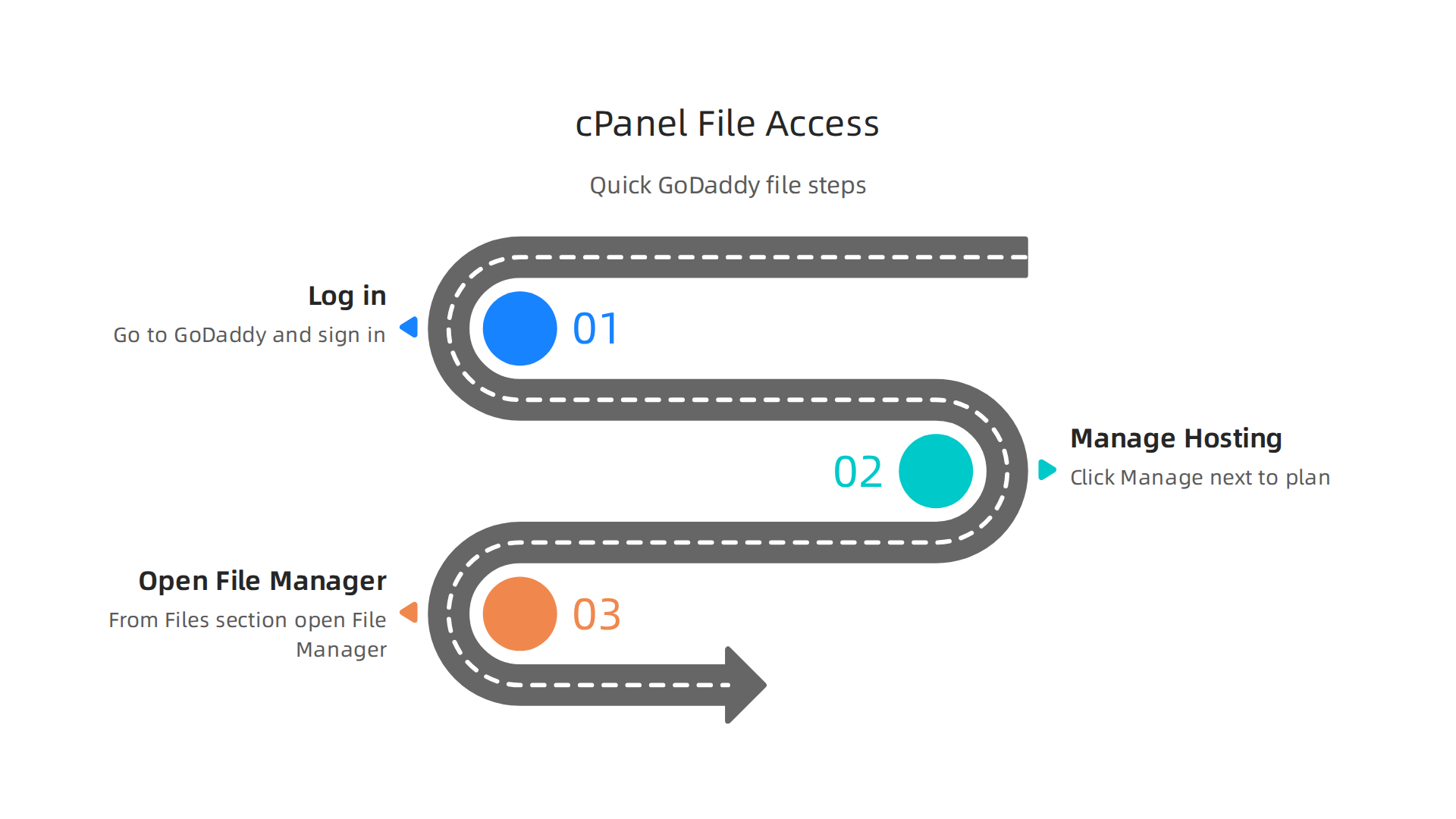
Step 1: Log in to Your GoDaddy Account
Go to GoDaddy.com and sign in. You will land on your account dashboard. This is where you manage all your products.
Step 2: Go to Your Hosting Dashboard
Find your hosting plan in the list. Click Manage next to it. This will take you to your cPanel dashboard. The GoDaddy Help Center explains how to access cPanel in your Web Hosting (cPanel) account.
Step 3: Open the File Manager
Inside cPanel, look for the Files section. You will see an icon called File Manager. Click it. A new window will open showing all the files for your website.
Which Folders Matter Most?
The File Manager can look confusing at first. But as an affiliate marketer, you only need to know a few key folders:
- public_html: This is your main website folder. All your site files live here. When you want to upload a new theme or change your homepage, you go here.
- wp-content: If you use WordPress, this is where your themes, plugins, and media uploads are stored. You will often edit theme files here for SEO improvements.
- logs: Your server logs are here. They help you troubleshoot errors, but you rarely need to touch them.
- .htaccess: This hidden file controls important server settings like redirects and security rules.
Common Pitfalls and How to Fix Them
Two problems trip up most beginners.
Problem 1: Permission errors
You might see "403 Forbidden" or "500 Internal Server Error" when you try to save a file. This usually means the file permissions are wrong. In the File Manager, right click the file, select Change Permissions, and set it to 644 for files or 755 for folders. GoDaddy has a guide on common web page errors that can help.
Problem 2: Cannot see hidden files
The .htaccess file is hidden by default. To see it, click Settings in the top right of the File Manager and check Show Hidden Files (dotfiles). Then it will appear. You can edit it directly to fix redirects or improve security.
Using the File Manager is the fastest way to handle small changes to your godaddy website files without leaving your browser. If you need to upload many files at once, FTP is a better choice. But for most daily edits, the File Manager works perfectly.
Once you feel comfortable navigating your files, you can move on to editing your site. Next, I will show you how to make changes to your site files without breaking anything.
3. Using FTP/SFTP for Efficient File Management Across Multiple Affiliate Sites
The cPanel File Manager we just covered works great for quick edits or when you only have one site. But if you are managing several affiliate websites, logging into cPanel for every single change gets old fast. You need a faster way to move files.

That is where FTP and SFTP come in. FTP stands for File Transfer Protocol. It lets you connect to your server right from your computer. You can drag and drop files just like moving folders on your desktop. For most users today, SFTP (Secure File Transfer Protocol) is the better choice because it encrypts everything you send. GoDaddy explains that their Managed Hosting for WordPress plans actually use SFTP by default.
How to Set Up SFTP in GoDaddy cPanel
Setting up an FTP or SFTP account is simple. Inside your GoDaddy hosting dashboard, find the FTP Accounts icon. Click it. You will see a page where you can create a new user. Just fill in a username, a strong password, and choose a directory. Usually you want the root directory like public_html so you can access all files. GoDaddy’s help center walks you through adding FTP users step by step.
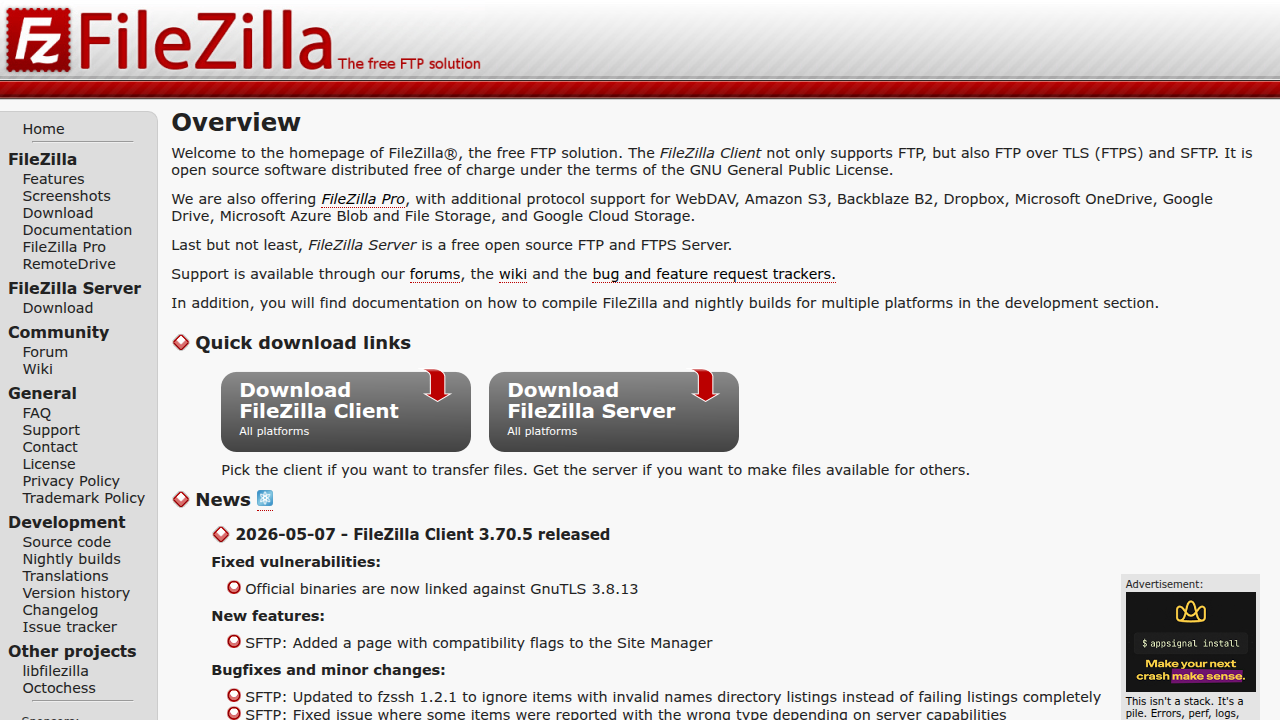
Once you create the account, you need an FTP client. The two most popular free clients are FileZilla and Cyberduck. Download one and install it. Then enter your connection details:
- Host: Your domain name or server IP
- Port: 22 for SFTP (some GoDaddy accounts use port 22, as noted in forums)
- Username: The FTP username you just created
- Password: The one you set
Hit Quickconnect and you are in. You will see your local files on one side and your server files on the other. Now you can upload whole folders, edit files with your favorite text editor, or deploy scripts in seconds.
Benefits for Your Affiliate Sites
Using FTP or SFTP gives you real advantages when you run multiple sites:
- Bulk uploads: No more clicking through cPanel folders one by one. Just select 50 image files and drag them into your
wp-content/uploadsfolder all at once. - Script deployment: Need to install a new plugin or update a custom snippet? Upload the file directly in seconds.
- Remote editing: Open any file in your local code editor and save it straight to the server. No more copy-paste.
Security Best Practices
FTP is powerful, but it also opens a door to your server. Follow these rules to stay safe:
- Use SFTP only. Regular FTP sends passwords in plain text. Always pick SFTP when you set up your client. The cPanel documentation confirms that SFTP uses SSH encryption.
- Create strong passwords. Never use "password123". Use a mix of letters, numbers, and symbols. Your cPanel allows you to generate a strong password right there.
- Limit IP access. If you always connect from the same home or office IP, whitelist that IP in cPanel’s security settings. This blocks everyone else.
Once you have your SFTP connection working, you can spin up new affiliate sites much faster. And if you want a repeatable process for scaling, our exact SOPs for affiliate business will show you how to systemize everything from file management to content creation.
Now you know two ways to manage your godaddy website files. Next, let me show you how to make live edits without breaking your site.
4. Organizing Your Affiliate Site’s File Structure for Scalability
So you know how to move your godaddy website files around. Good. But here is something most people miss. If you throw files into random folders, your growth will hit a wall fast. When you have one site, a messy structure is annoying. When you have five sites, it is a disaster.
You need a system that makes your godaddy website files easy to manage. A structure that helps you scale without breaking anything. Let me show you how.
Addon Domains vs Subdirectories
Your GoDaddy account can host many sites. You have two main ways to set them up.
- Addon domains: Each site gets its own folder inside
public_html. This keeps everything separate. For example,public_html/site1.comandpublic_html/site2.com. This is the best choice for affiliate sites. It prevents file conflicts and makes backups simple. - Subdirectories: You create folders like
public_html/site1under your main domain. This works but can cause issues with links and SEO. Shared hosting is still good for many small sites, but stay with addon domains for cleaner management.
Most affiliate marketers I know use addon domains. It gives each site its own space and lets you use separate WordPress installs. If you ever want to go bigger, you can look into WordPress Multisite, which works best with specific hosting setups.
Naming Conventions That Save Headaches
When you upload assets, use clear names. Do not use "final-logo-v2.png" or "style-new.css". That will confuse you later.
Here is a simple system.
- Theme folders: Use the site name. For example,
site1-themeandsite2-theme. - Plugin folders: Keep plugin files inside their own folders inside
wp-content/plugins. Do not mix them with theme files. - Uploads folders: Use the default year and month structure. Never move images around manually.
This keeps your godaddy website files organized. When you need to find a file, you know exactly where to look. You can also use a file like .htaccess to set custom rules for each site, which adds another layer of control.
Using Symbolic Links Safely
A symbolic link (symlink) is a shortcut. It lets one folder point to another folder. This is useful when you have shared resources across sites.
For example, if you use the same plugin library on three sites, you can create a symlink from each site’s wp-content/plugins folder to a central plugin folder. This saves disk space and keeps updates simple.
Here is the catch. Symlinks are powerful but dangerous if used wrong.
- Safe to symlink: Plugin libraries, media folders for stock images, or shared code libraries.
- Not safe to symlink: Theme files, upload folders with user content, or configuration files like
wp-config.php.
If you break a symlink, your site can crash. Use them only when you are sure. If you want to learn a repeatable process for setting up sites from scratch, our exact SOPs for affiliate business cover everything from file structure to automation.
Now you know how to organize your godaddy website files for growth. Next, let me show you how to make live edits without breaking anything.
5. Essential Files for Affiliate Marketing Sites: wp-config, .htaccess, and More
You have your file structure organized. But now you need to know about the hidden files that can make or break your site. I have seen people mess up their whole affiliate site because they edited one of these files wrong. Let me walk you through the most important ones and how to handle them safely.
The Critical Files You Must Know
Every WordPress site on your GoDaddy hosting has a few key files.
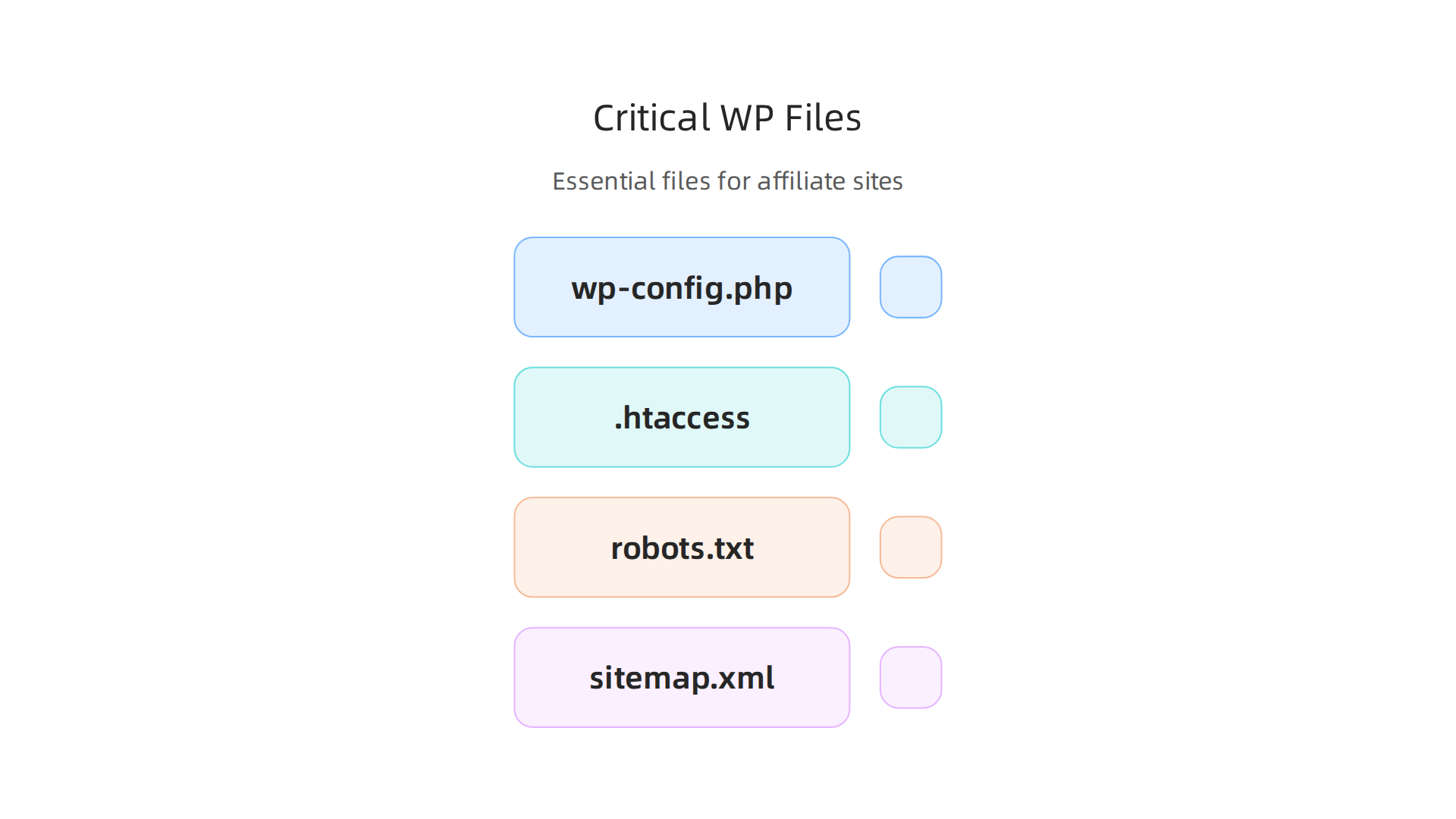
Touch these without care and your site can go down in seconds.
- wp-config.php: This file holds your database login details. It tells WordPress how to connect to the database. If you mess this up, your site shows a blank white screen. Never leave this file open in a text editor. Only change it when you really need to, like when updating database credentials or adding security keys.
- .htaccess: This file controls redirects, caching rules, and security settings. Your GoDaddy website files rely on .htaccess to make clean URLs work. You can use it to block bad bots or set up 301 redirects for old affiliate links. A single wrong line can cause a 500 error. Always make a backup before editing. You can learn more about htaccess security for WordPress to harden your site.
- robots.txt: This tells search engines which pages to crawl. For affiliate sites, you might block certain pages like tag or author archives to save your crawl budget. One mistake here and Google might not index your money pages.
- sitemap.xml: This file lists all your important pages. It helps search engines find your content faster. Most SEO plugins generate this automatically. Just make sure it is there and submit it to Google Search Console.
How Improper Editing Can Break Your Affiliate Site
Here is the thing. Editing these files through the GoDaddy File Manager is easy. But one extra space or wrong character can crash everything. I have seen someone accidentally delete wp-config.php while cleaning up old files. Their whole site went offline for hours.
The most common problems come from .htaccess edits. For example, a bad redirect rule can create an infinite loop. Visitors get stuck and leave. Your affiliate commissions drop. To avoid this, always keep a copy of the working file on your computer. If something breaks, you can replace it quickly.
Also, file permissions matter. Your GoDaddy hosting expects folders to be set to 755 and files to 644. If you change these by accident, plugins might not write data or images may stop loading. GoDaddy has a simple guide to reset WordPress file and folder permissions if needed.
Automating File Modifications
You do not have to edit these files by hand every time. Many site owners use deployment scripts or plugins to make changes safely.
- Deployment scripts: Tools like DeployBot or GitHub Actions can push updates to your server. They only change the files you specify. This reduces the chance of human error.
- Plugins: Some security and caching plugins can update .htaccess for you. For example, WP Rocket adds caching rules automatically. Just be careful not to let two plugins fight over the same file.
If you want a repeatable process that covers everything from file structure to automation, check out our exact SOPs for affiliate business. It walks you through setting up these files correctly from day one.
When you are ready to promote products, you will need to handle affiliate links carefully. Make sure your .htaccess file has proper redirects. That way your links work smoothly and you do not lose sales. For example, if you join the Fitbark affiliate program, you can create clean redirects that track clicks without breaking your site.
Now you know which godaddy website files matter most. Next, I will show you how to make live edits without taking your site down.
6. Troubleshooting Common GoDaddy File Issues for Affiliate Sites
So you followed the steps and started editing your godaddy website files. Then something goes wrong. Your site shows a scary error message. Don’t panic.

These problems are common and usually easy to fix. Let me walk you through the most frequent ones and how to solve them fast.
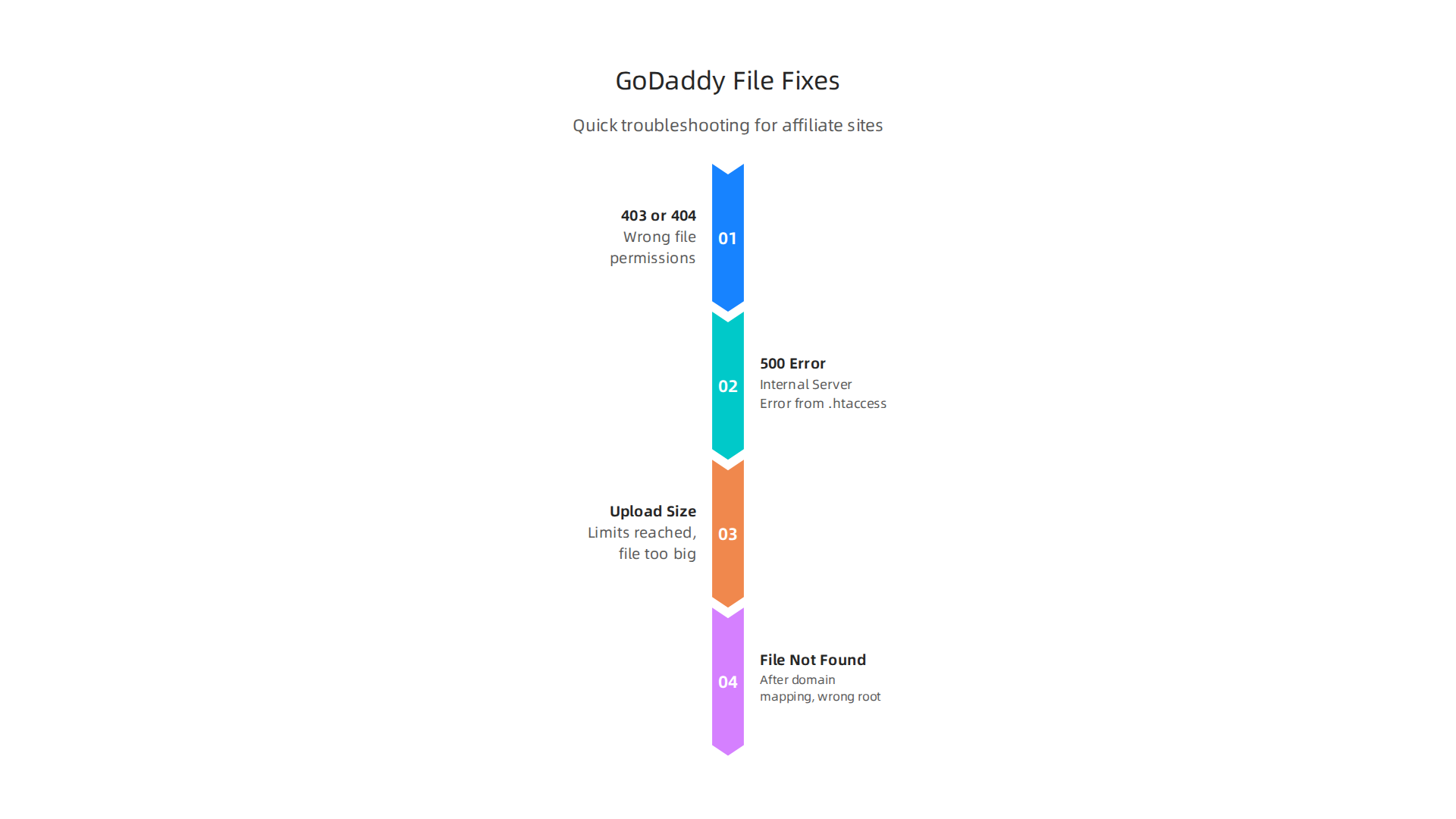
Error 403 or 404 from Wrong File Permissions
You try to visit your site and get a 403 Forbidden error. Or a 404 Not Found. This often happens when file permissions are off. For WordPress, folders should be set to 755 and files to 644. If you changed them by accident, your site can’t read the files properly.
To fix it, open your cPanel File Manager. Right click the affected folder or file and select "Change Permissions." Set the numbers correctly. GoDaddy has a full guide on how to set file or directory permissions in cPanel. If you need to reset all permissions at once, you can use SSH to reset WordPress file and folder permissions with a single command.
Error 500 Internal Server Error from .htaccess
This is the most common issue I see. One wrong character in your .htaccess file and you get a 500 Internal Server Error. Your whole site goes down.
Here is the quick fix. Rename your .htaccess file to htaccess_old using File Manager. If your site comes back, the problem was in that file. Then create a fresh .htaccess by going to Settings > Permalinks in WordPress and clicking Save. This generates a clean file. GoDaddy shows you exactly how to fix a WordPress internal server error with more detail.
File Upload Size Limits
You try to upload a product image or theme file and get an error. The file is too big. GoDaddy shared hosting has limits. By default, upload_max_filesize is often set to 2MB or 8MB. For affiliate sites with lots of images, that is not enough.
You can increase the limit by creating or editing a .user.ini file in your public_html folder. Add this line: upload_max_filesize = 64M. You might also need to increase post_max_size. GoDaddy explains PHP upload limits on shared hosting including other factors like timeout.
File Not Found After Domain Mapping
If you set up an addon domain or parked domain and get "File Not Found," the issue is usually the document root. Your files are in the wrong folder. In cPanel, check that your addon domain points to the correct directory, like public_html/yourdomain.
You might also need to update the site URL in WordPress if you moved files. A quick check: log into your WordPress admin and go to Settings > General. Make sure the WordPress Address and Site Address match your domain.
Want a complete system to avoid these issues from the start? Check out our exact SOPs for affiliate business. It walks you through setting up file permissions, .htaccess rules, and upload limits correctly the first time.
Once your site is running smooth, you can start adding affiliate products. For dog-related sites, the Fitbark affiliate program is a popular choice. Just make sure your .htaccess redirects are working so your links don’t break.
Now that you know how to fix common godaddy edit website problems, let’s look at how to make live edits without taking your site down.
7. Automating File Backups and Updates for Scalability
Fixing errors is one thing. But for an affiliate site that grows over time, you need a system that prevents problems before they start. That means automating your GoDaddy website files backups and updates. When you do this right, you free up hours every week and never worry about losing content.
GoDaddy Built-in Backups vs Third-Party Plugins
Every Web Hosting (cPanel) plan from GoDaddy includes an automatic 1-day daily backup according to GoDaddy’s support page. That is a backup from the last 24 hours. It is useful for quick rollbacks, but it only keeps one snapshot. If your site gets hacked and you don’t notice for three days, that single backup might already be infected.
That is where third-party plugins like UpdraftPlus or Jetpack come in. They let you schedule backups daily, weekly, or monthly and store them offsite on cloud services like Dropbox or Google Drive. The Litextension guide on GoDaddy website backups explains that automated scheduled backups ensure your latest version is always stored securely. For affiliate sites with lots of content, having multiple restore points across time is a lifesaver.
The downside? Some plugins cost money for premium features and can use server resources. But the tradeoff is worth it when you compare the cost of losing months of blog posts and affiliate links.
Automating Updates with WP-CLI and Deployment Tools
Updating plugins and themes manually every week is a chore. And letting auto-updates run wild can break your site. The sweet spot is using WP-CLI, a command line tool that lets you update everything with one command. You can even set up a cron job on GoDaddy to run updates automatically at 3 a.m.
If you manage multiple affiliate sites, tools like GoDaddy Pro Site Maintenance can automate routine monitoring tasks including backups and performance checks. This takes the manual labor out of scaling.
Integrating Backups with Your Affiliate Workflow
Here is the key. Your backup schedule should match your content update rhythm. If you publish new posts every week, schedule a backup after each publication. That way you never lose fresh content. The exact SOPs for affiliate business walk you through setting up these workflows so you don’t have to remember every step.
Once your backups and updates run on autopilot, your job shifts from firefighting to growing your site. You can spend that saved time testing new affiliate products.

For dog-related niches, the Fitbark affiliate program is a great example of something you can promote while your server handles the boring stuff.
Set it up once. Let it run. Focus on earning commissions.
Summary
This guide explains how affiliate marketers can take control of their GoDaddy website files to save time, avoid downtime, and scale faster. It covers how different GoDaddy hosting plans expose file access (cPanel, FTP/SFTP, VPS), a step‑by‑step walkthrough of the cPanel File Manager, and how to set up secure SFTP connections for bulk uploads and remote editing. The article shows how to organize addon domains and naming conventions for multiple sites, highlights critical files like wp-config.php and .htaccess and how to edit them safely, and walks through common errors and quick fixes. It also explains automation options for backups and updates so you can prevent issues before they cost revenue. After reading, you’ll know which tools to use, how to structure files for growth, how to recover from common mistakes, and how to automate maintenance for a reliable affiliate business.