
How to Set Up a Cloudflare Redirect Domain for Your Affiliate Site

Introduction
If you run an affiliate site, you know that every click counts. One broken link or wrong redirect can send a visitor to a dead end instead of your affiliate offer. That means a lost commission, sometimes in seconds. You need a way to move traffic where you want it to go, and you need it to work every time.
That is where a cloudflare redirect domain setup comes in. Cloudflare gives you a free, fast, and reliable way to handle all your URL forwarding. Whether you are moving old pages, shortening links for social media, or testing different landing pages, Cloudflare handles the heavy lifting. And since it works at the network level, it is much faster than redirect plugins or server-level solutions.
But here is the catch. If you set up redirects the wrong way, you can run into the dreaded ERR_TOO_MANY_REDIRECTS error. This often happens when your origin server and Cloudflare both try to redirect the same URL. The good news is that Cloudflare’s official troubleshooting guide shows you exactly how to fix it by removing conflicting HTTPS redirects on your server.
Cloudflare is already a top choice for affiliate marketers because of its speed and security. In fact, many sellers compare Cloudflare vs GoDaddy for affiliate websites and find Cloudflare wins for load times and protection. Adding redirect management to your skillset makes your affiliate business even stronger.

In this guide, we will walk you through everything: basic redirect setup using Cloudflare’s dashboard, how to avoid common mistakes, and how to test your redirects so they work before you send traffic. You will also learn how to track performance to make sure your commissions stay intact. Let us get started.
What Is a Cloudflare Redirect Domain?
A cloudflare redirect domain setup is how you send visitors from one web address to another using Cloudflare’s network. Instead of your website server handling the redirect, Cloudflare does it at the edge of their global network. This means faster response times because the redirect happens closer to your visitor, not on your server.
Cloudflare gives you several ways to set this up. The most common methods are Page Rules, Dynamic Redirects, and Bulk Redirects. They all do the same basic job. They tell a browser, "This page moved. Go here instead."
Cloudflare’s official documentation on redirecting domains explains the core setup. You create a DNS record for the alias domain, then add a redirect rule that points to your primary domain. This is the go-to method when you want to move traffic from old domain names to your main site.
But there is more to it than just forwarding a URL. You need to choose the right type of redirect. This is where HTTP status codes come in.
The Three Redirect Types You Need to Know
When you set up a cloudflare redirect domain, you will see options for 301, 302, and 307 redirects.
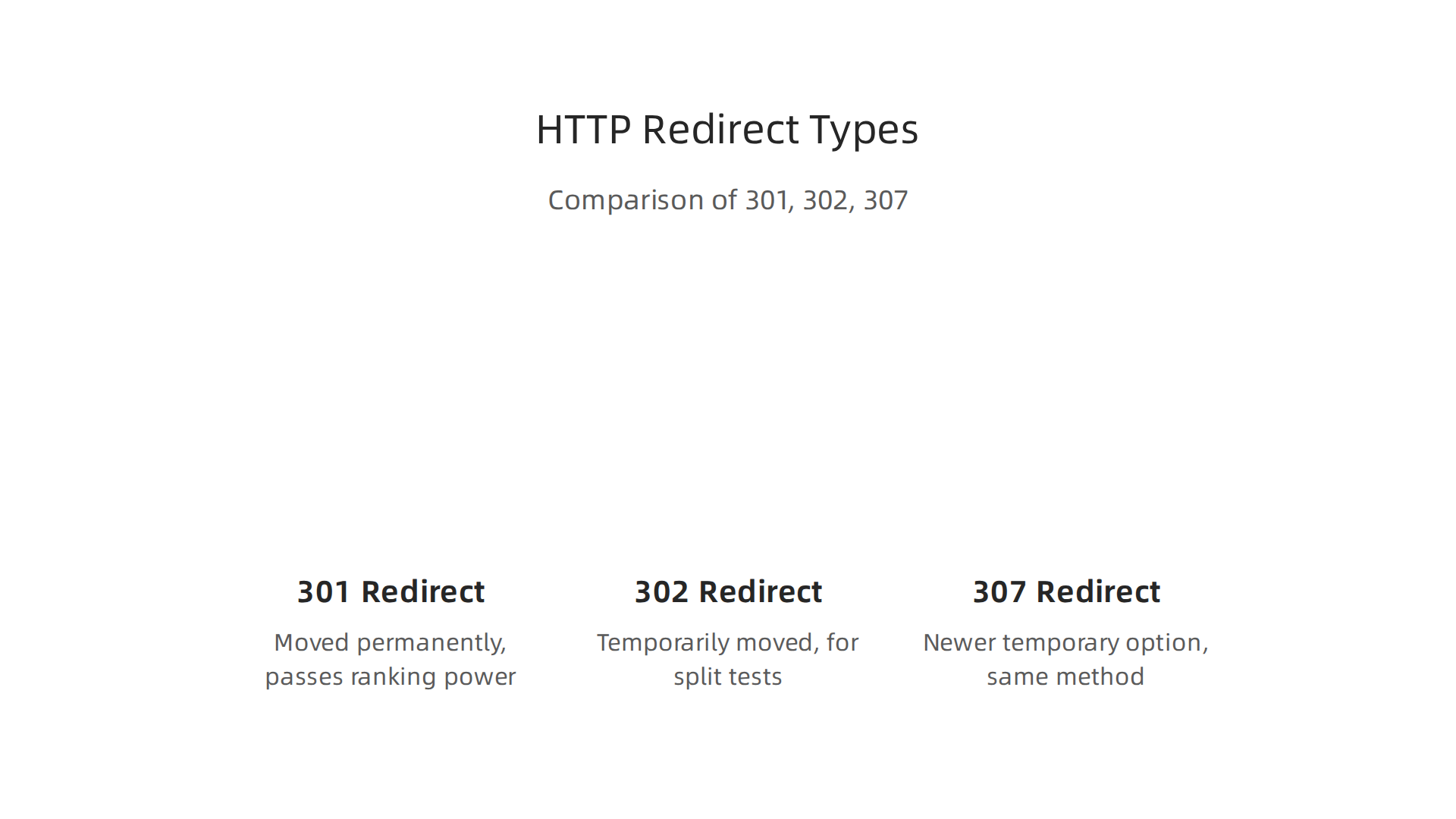
Each one sends a different signal to browsers and search engines.
A 301 redirect means "moved permanently." A complete guide on URL redirects explains that a 301 tells browsers and search engines the page has moved to a new location for good. This passes most of your ranking power to the new URL. Use it when you rebrand, merge sites, or permanently change a page URL.
A 302 redirect means "found" or "temporarily moved." According to ThirstyAffiliates’ documentation on redirect types, a 302 sends visitors to a different URL without specifying why. It does not pass ranking power the same way a 301 does. Use a 302 when you run a split test or have a temporary landing page.
A 307 redirect is a newer temporary option. Cloudflare’s announcement about Bulk Redirects shows they added support for 307 alongside 301 and 302. A 307 works like a 302 but guarantees the browser uses the same request method. For most affiliate sites, stick with 301 or 302.
Why Cloudflare Makes Redirects Faster
Traditional redirects happen on your server. Every time a visitor hits a redirect, your server has to process the request. This takes time, especially if your server is far from the visitor.
Cloudflare works differently. Your redirect rules live on Cloudflare’s global network of data centers. When someone visits your site, they connect to the nearest data center. That data center handles the redirect instantly. No round trip to your origin server.
Cloudflare’s Dynamic Redirects feature takes this further. You can redirect visitors based on hundreds of conditions like their country, device, or language. For example, send visitors from the UK to a UK-specific affiliate offer and US visitors to a US offer. All of this happens at the network level, so it stays fast.
This speed matters for affiliate marketing. Every extra second of load time can drop your conversion rate. By using Cloudflare for your redirects, you keep visitors moving quickly to your affiliate offers.
Putting It All Together
The basic process is simple. First, add your domain to Cloudflare. Then set up your DNS records. Finally, create a redirect rule using Page Rules or Dynamic Redirects in the dashboard.
If you are new to Cloudflare, start with Page Rules. They are easy and do not require any coding. As you get comfortable, move to more advanced options. And always run a cloudflare test after setting up your redirects to make sure they work correctly.
For affiliate marketers who manage multiple cloudflare domains, understanding how redirects work is essential. It saves time, reduces errors, and keeps your traffic flowing. And since Cloudflare offers these features on their free plan, there is no reason not to use them.
To learn more about keeping your affiliate business safe, check out how to use Cloudflare DDoS protection for affiliate sites. It is another way Cloudflare helps protect your income.
Why Affiliate Marketers Rely on Redirects
You know how a cloudflare redirect domain sends visitors from one URL to another. But why do affiliate marketers care so much about this? The answer is simple. Redirects solve three big problems that every affiliate site faces.
First, redirects help you clean up ugly affiliate links. A raw affiliate URL often looks like a mess of numbers and tracking codes. Visitors see that and hesitate to click. It looks spammy. But when you wrap that link in a redirect on your own domain, it looks clean and trustworthy. For example, instead of your-affiliate-program.com/?ref=12345, you get yoursite.com/recommends/product-name. That small change makes a big difference in click-through rates. A recent guide on affiliate link strategies for 2026 lists redirects as a top technical tactic for boosting conversions. Cleaner links build trust, and trust leads to more sales.

Using a cloudflare redirect domain also gives you a place to manage all the cloudflare domains you own. You can see all your redirects in one dashboard. This makes it easy to find what you need fast. To protect your hard work, be sure to check out how to use Cloudflare DDoS protection for affiliate sites so your redirect rules stay safe from attacks.
Second, redirects let you update affiliate program links without touching your published content. This is a lifesaver. Say you wrote a blog post recommending a software tool. A year later, that tool changes its affiliate program and gives you a new link. Without a redirect, you have to log into your site, find the old post, and edit the link by hand. With a redirect, you just update the destination in your redirect rule once. Every link on your site pointing to that redirect automatically uses the new destination. This saves hours of work, especially if you have dozens or hundreds of posts. AffiliateX notes that using 301 redirects is the best practice for affiliate links because it also passes SEO value to the new destination.
Let me give you a real example. Say you promote pet products and you have a link to the FitBark Affiliate Store. You set up a redirect from yoursite.com/go/fitbark to their store. If they ever change their affiliate URL, you just change that one redirect. All your old content still works perfectly. That is the power of redirects.
Third, redirects make link tracking and attribution possible. When you send visitors through a redirect, you can add tracking parameters to the link. This tells you exactly which campaign, platform, or piece of content drove the sale. Without redirects, you would have to guess which of your efforts actually worked. With them, you get clear data. The top affiliate marketing tools in 2026, including tracking platforms like RedTrack, rely on redirects to gather this attribution data.
For affiliate marketers juggling multiple cloudflare domains and offers, this is huge. You can run multiple campaigns from one site and know exactly what works. And since Cloudflare handles the redirect at the network level, the tracking is fast and reliable.
If you want to build a business that scales without the manual headache, the automated affiliate marketing system shows you how to set up these workflows from day one. Redirects are a small piece of the puzzle, but they make everything else run smoother.
Step-by-Step: Setting Up Your First Cloudflare Redirect
Now that you understand why affiliate marketers rely on redirects, let me walk you through the actual setup. The good news is that setting up a redirect using a cloudflare redirect domain is simple and takes just a few minutes. You don’t need any coding skills, and Cloudflare’s dashboard makes the whole process smooth.
Here is the step-by-step plan.
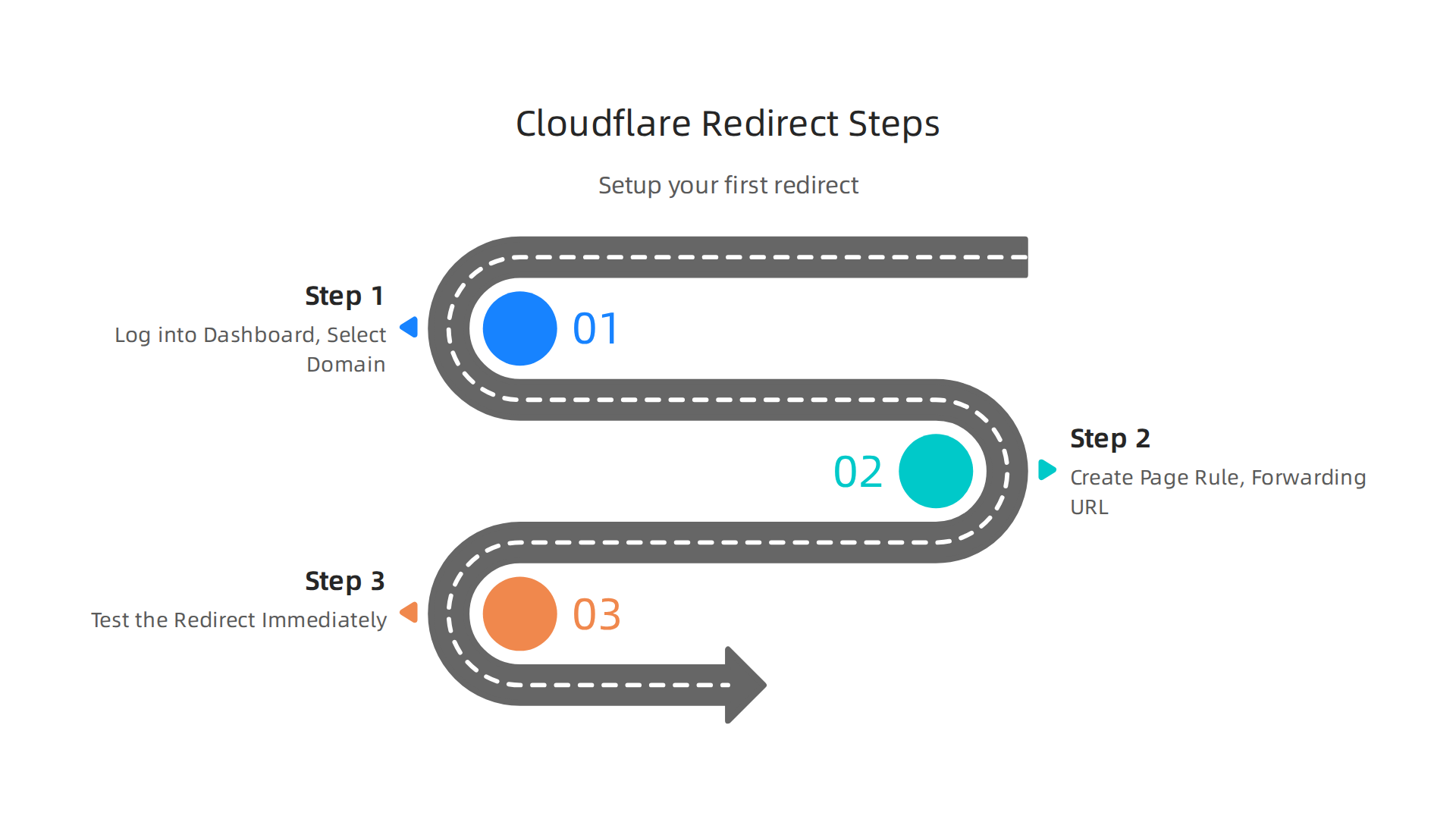
Step 1: Log into Your Cloudflare Dashboard and Select Your Domain
First, go to your Cloudflare account and log in. On the main dashboard, you will see a list of all the cloudflare domains you have added. Click on the domain where you want to create the redirect. This is usually the domain you use for your affiliate links, like yoursite.com. If you haven’t added a domain yet, you will need to complete cloudflare domain registration or transfer an existing domain to Cloudflare registrar first.
Once you are inside the domain settings, look for the “Rules” or “Page Rules” tab on the left side menu. Click it to open the Page Rules section.
Step 2: Create a Page Rule with a Forwarding URL
Now you will add a new Page Rule. Click the “Create Page Rule” button.
In the first field, enter the URL pattern you want to redirect. For example, if you want to redirect yoursite.com/go/product to an affiliate link, you would type yoursite.com/go/product. You can also use wildcards like * to match multiple paths.
Next, in the “Then the settings are” section, choose “Forwarding URL” from the dropdown. Then pick your redirect type. Here is the critical part: you need to understand the difference between 301 and 302 redirects.
- 301 Redirect (Permanent): Use this when the destination URL is permanent. Affiliate links that you intend to keep long-term should use 301 because it tells search engines to transfer ranking power (often called “link juice”) to the new URL. The ThirstyAffiliates documentation on redirect types explains that a 301 is for permanent moves.
- 302 Redirect (Temporary): Use this if you only want to temporarily point to another URL. For instance, if you are testing a new affiliate offer and might switch back later, a 302 is safer because it tells search engines not to update their index permanently.
For most affiliate marketing redirects, a 301 redirect is the best choice because your link is meant to point to that product long-term. The URL Redirects Guide from Redirect Pizza confirms that a 301 is the standard for permanent moves.
After selecting your type, enter the destination URL (your affiliate link) in the field provided. Then click “Save and Deploy.”
Step 3: Test the Redirect Immediately
Once the redirect is saved, do not assume it works. Run a quick cloudflare test to verify everything is set up correctly. Open a new browser tab and type in your redirect URL (the one you created, like yoursite.com/go/product). It should automatically take you to the affiliate destination.
But here is the catch. Your browser might cache old results or DNS changes might not have propagated yet. To be thorough, use an online redirect checker tool. These tools tell you the HTTP status code (should be 301 or 302) and the final destination. This is especially important if you manage multiple cloudflare domains and want to ensure all redirects are functioning globally.
Cloudflare also gives you more advanced options through Dynamic Redirect Rules which let you redirect based on visitor country, device, or language. For most beginners, a simple Page Rule is enough. But as you scale, you might want to explore Cloudflare’s bulk redirects feature which lets you upload a CSV file with hundreds of redirects at once.
A Quick Pro Tip
Always keep a list of your active redirects somewhere safe. If you ever change affiliate programs or update a link, you will need to edit the Page Rule. And since Cloudflare applies these rules at the network level, your redirects are lightning fast, even for users on the other side of the world.
Once you have your first redirect working, you can set up dozens more in the same way. This is how you build a clean, scalable link structure for your affiliate business. And if you want to protect all this hard work from attacks, make sure you also set up proper Cloudflare DDoS protection for affiliate sites so your redirect rules stay safe.
Now go ahead and create your first redirect. It only takes a few clicks, and it will save you hours of manual link management down the road.
Advanced Redirect Techniques: Page Rules vs. Workers
Now that you know how to set up a basic redirect with Page Rules, let’s talk about what happens when your affiliate site grows. The simple method works great for a handful of links. But what if you need hundreds of redirects? Or what if you want to send visitors from one country to a different offer?
Cloudflare gives you two main ways to handle redirects: Page Rules and Workers.
Each has its own strengths. The right choice depends on how many redirects you need and how smart you want them to be.
Page Rules: Simple, but Limited
Page Rules are perfect when you only need a few redirects. You already saw how easy they are to set up. Here is the catch: Cloudflare’s free plan only lets you create 3 Page Rules. That is enough for maybe your top affiliate links or a few domain redirects. But it won’t work if you have dozens or hundreds of affiliate links.
You can buy more Page Rules on paid plans (up to 125 on the Business plan). But for serious affiliate marketers, even 125 might not be enough when you scale. Plus, Page Rules can only do basic forwarding. They cannot check where the visitor lives or what device they use.
Cloudflare Workers: Unlimited and Dynamic
Workers are like tiny programs that run on Cloudflare’s network. They can do almost anything a normal web server can do, including redirects. And here is the big difference: there is no rule limit. You can write one Worker that handles thousands of redirects. You can also make smart decisions based on the visitor’s location, browser language, or even the time of day.
For example, you could use a Worker to send visitors from the United States to an Amazon affiliate link and visitors from the UK to a different link. Cloudflare’s Dynamic Redirects feature does this too, but Workers give you even more control. You can also create a Worker for A/B testing: send half your traffic to one affiliate offer and half to another. Then check which one converts better.
The official Cloudflare documentation shows how to set up redirects with Workers using a simple text file called _redirects. This is great when you have many redirects to manage. You can even combine Workers with other services like Redirection.io for advanced SEO management.
Which One Should You Use?
| Page Rules | Workers |
|---|---|
| Easy to set up without coding | Requires some basic coding (or a config file) |
| Limited number per plan (3 on free, up to 125 on Business) | Unlimited redirect logic |
| No dynamic conditions (location, device, etc.) | Full control over conditions |
| Best for a handful of simple redirects | Best for large scale or personalized redirects |
For most beginners, stick with Page Rules until you reach the limit. Once you need more than 125 redirects or want dynamic routing, move to Workers. There is a free tier for Workers too (100,000 requests per day), so it costs nothing to start.
A Quick Tip for Testing
No matter which method you use, always run a cloudflare test after setting up new redirects. Use an online redirect checker to confirm the status code and final destination. This is especially important when you use Workers, because a small mistake in the code can break the redirect.
And do not forget to protect all your hard work. If you use Workers for redirects, make sure your site is safe from attacks. Our guide on Cloudflare DDoS protection for affiliate sites shows you how to keep everything secure.
In short, match the tool to your need. Page Rules for quick, simple redirects. Workers for power and scale. Both help you build a clean, professional cloudflare redirect domain structure that your affiliate business can grow on.
Troubleshooting Common Cloudflare Redirect Errors
You set up your redirects, test them, and instead of going to your affiliate offer, you see an error page. Nothing kills a visitor’s trust faster than a broken link. The good news is most Cloudflare redirect errors have simple fixes. Let’s walk through the three most common problems and how to solve them.
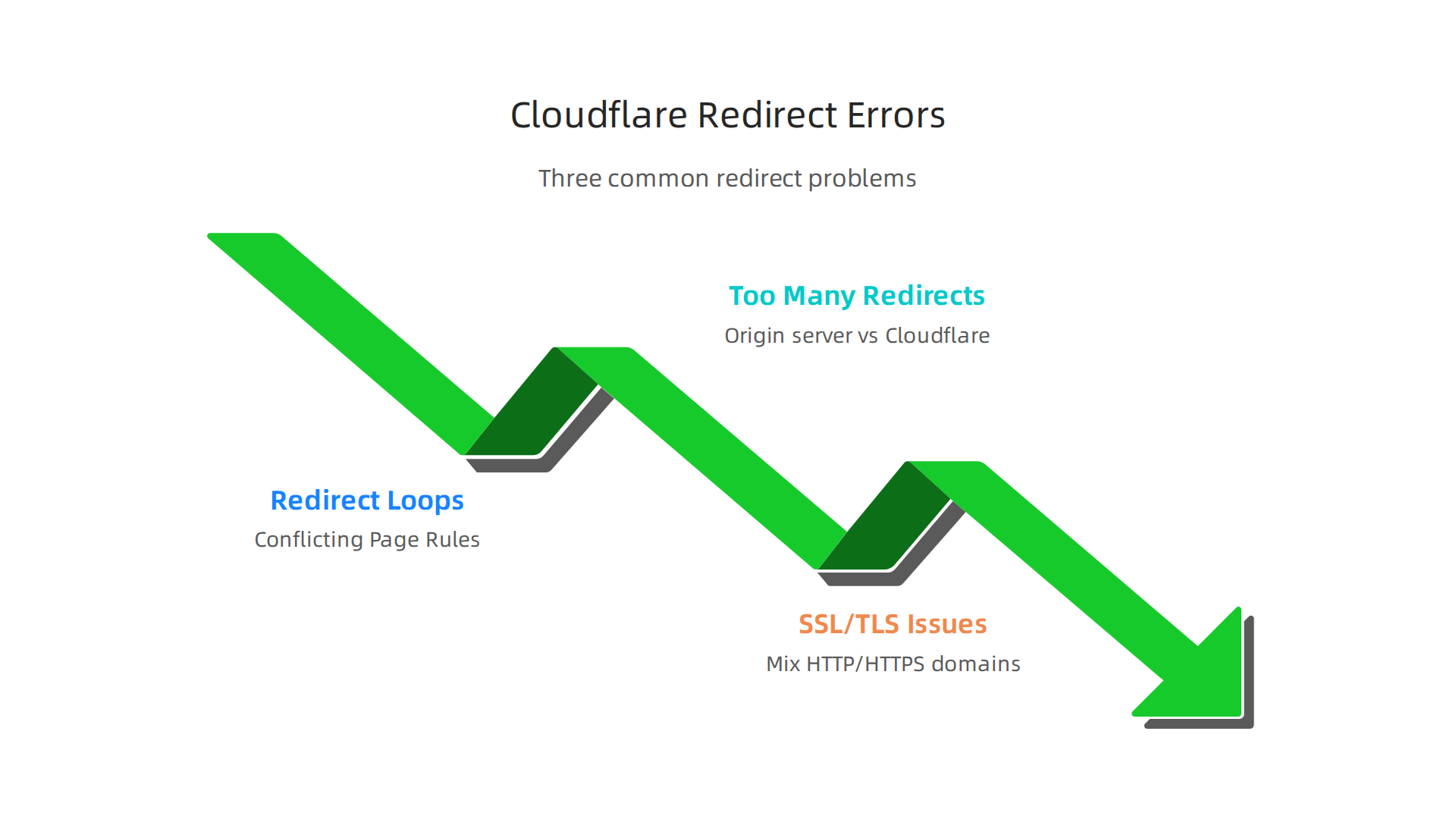
1. Redirect Loops from Conflicting Page Rules
A redirect loop happens when your browser keeps bouncing between two URLs without ever landing. This usually occurs because you have two Page Rules that contradict each other. For example, one rule redirects old-page.com to new-page.com, and another rule redirects new-page.com back to old-page.com. The browser gets stuck in a circle.
The fix is simple: review all your Page Rules and remove any that overlap. Make sure each URL pattern only has one destination. Cloudflare’s own Page Rules troubleshooting guide explains that the most common reason a rule doesn’t work is that it is set up for a record that isn’t proxied through Cloudflare. Double-check your DNS settings and make sure the orange cloud is on for the domains you are redirecting.
2. Too Many Redirects Error
This error looks like ERR_TOO_MANY_REDIRECTS in your browser. It often means there is an infinite loop happening. But the cause can be trickier to spot. Sometimes it comes from mixing redirects at your origin server (like your web host) with redirects in Cloudflare. If your server forces HTTPS and Cloudflare also forces HTTPS, they can fight each other.
The solution is to turn off HTTPS redirects on your origin server and let Cloudflare handle it. Cloudflare’s documentation on too many redirects says to set your encryption mode to Flexible or higher and remove any redirect rules from your web server. This keeps only Cloudflare in charge of the redirect logic.
A deeper look at Cloudflare redirects shows that conflicting rules between services are a common source of these errors. So, if you are using both Page Rules and Workers for the same domains, check that they don’t fight each other.
3. SSL/TLS Redirect Issues
When you mix HTTP and HTTPS domains in your redirects, things can go wrong. Say you created a Page Rule to redirect http://example.com to https://affiliatelink.com. But if your Cloudflare SSL setting is too strict or misconfigured, the redirect might not work. Visitors could see a security warning or a blank page.
The best practice is to make sure all your cloudflare redirect domain rules point to HTTPS URLs. Also, go to the SSL/TLS section in your Cloudflare dashboard and set the encryption mode to Full (strict is better if you have a valid SSL certificate on your origin). This ensures the entire redirect path is secure.
Run a Cloudflare Test Every Time
After you fix any of these errors, always run a cloudflare test. Use an online redirect checker to confirm the final URL and the HTTP status code (301 or 302). Test on multiple devices and locations if possible. A simple mistake like a missing slash can cause a redirect loop.
Once your redirects are solid, don’t forget to protect your site from attacks. See our guide on Cloudflare DDoS protection for affiliate sites to keep all that hard work safe.
Remember, most Cloudflare redirect errors come from simple conflicts. Check your Page Rules, turn off server-side redirects, and keep your SSL settings consistent. A few minutes of troubleshooting saves you from losing traffic and commissions.
Tracking and Optimizing Redirect Performance
Fixing your redirect errors is just the first step. The real money comes from knowing what happens after the redirect works. Are visitors actually clicking through? Are they landing on the offer? Are they converting?
If you are not tracking your redirects, you are flying blind. Every click that goes through your cloudflare redirect domain setup is a signal. You just need to listen to it.
Use Cloudflare Analytics to See What Is Happening
Cloudflare gives you a free tool to monitor your traffic. The Cloudflare Web Analytics dashboard shows you top-performing pages, referrers, and core web metrics. You can use Cloudflare Web Analytics to see how many people hit your redirect rules. This dashboard is free and does not require any extra code on your site.
To get more detail, combine Cloudflare Analytics with Google Analytics. A common approach is to add tracking parameters to your redirect URLs. One developer explains how to track redirects on Cloudflare with Google Analytics using a simple interstitial page. This helps you see exactly which redirect paths are sending people to your offers.
Measure These Three Key Metrics
Not all metrics matter the same way. Focus on these three numbers:
- Total redirect requests. This tells you how many times your redirect rules fired each day. If the number drops suddenly, something is broken.
- Top redirect paths. Look at which old URLs are getting the most traffic. These are your gold mines. A redirect from a high-traffic page to a weak offer is a missed opportunity.
- Conversion funnel. Use your affiliate platform or tracking tool to see how many redirected visitors actually buy. If traffic is high but sales are low, your offer or landing page may need improvement.
Cloudflare’s documentation on high-level metrics explains how to interpret these numbers and spot performance issues.
Optimize by Pruning and Consolidating
After a few weeks, you will have data on what works and what does not. Now it is time to clean house.
- Consolidate underperforming redirects. If you have five old URLs pointing to the same offer but two get almost no traffic, merge them into one rule. This simplifies your setup and reduces the chance of errors.
- Prune outdated redirects. If you stopped promoting a product or the offer ended, remove the redirect. Dead redirects waste resources and can confuse search engines.
- Reassign failing paths. If a redirect is not driving conversions, point it to a better offer or a lead magnet instead.
Regular optimization keeps your cloudflare redirect domain structure lean and effective. As part of your overall SEO strategy, this helps maintain search equity. According to a guide on affiliate link strategies, using proper 301 redirects preserves link authority and signals to Google that your content is stable.
Run a Cloudflare Test After Every Change
Every time you add, remove, or modify a redirect, run a cloudflare test. Use an online redirect checker to confirm the chain is correct. Test from different devices and locations. A small mistake like a wrong target URL can kill a week of traffic.
When you monitor and optimize your redirects the right way, your affiliate site becomes a well-oiled machine. You stop guessing and start growing.

For a deeper comparison of how Cloudflare stacks up against other DNS providers for affiliate sites, check out our guide on Cloudflare vs Godaddy for affiliate websites.
Summary
This article explains how to use Cloudflare to manage fast, reliable redirects for affiliate sites, why redirects matter, and how to avoid common pitfalls that cost commissions. It covers the basics—what a Cloudflare redirect domain is, the differences between 301/302/307 redirects, and a simple step‑by‑step walkthrough to create forwarding rules in the Cloudflare dashboard. The guide also compares Page Rules and Cloudflare Workers for scaling redirects, shows how to troubleshoot errors like redirect loops and SSL problems, and explains how to track and optimize redirect performance so you know which links actually convert. After reading, you’ll be able to create, test, and maintain clean affiliate redirects that are fast, secure, and easy to update without editing old posts.
Related Articles