
Transfer Domain Name from GoDaddy to Squarespace in 2026

Introduction
Have you ever felt stuck trying to manage your website and domain name in two different places? It gets confusing fast. You build a site on Squarespace, but your domain name lives at GoDaddy. Every time you need to tweak settings or renew a service, you log into two accounts. It wastes time and creates unnecessary stress.
That is why many entrepreneurs choose to transfer domain name from godaddy to squarespace in 2026. When you move your domain into Squarespace, everything lives under one roof.

Your website builder, hosting, and domain registration all work together. That makes maintenance much simpler.
A domain transfer might sound technical. But the process is straightforward when you follow the right steps. According to Squarespace’s official support page, you just need to unlock your domain, get an authorization code, and start the transfer from your Squarespace account. It takes about five to seven days to complete.
Moving your domain also helps you avoid common problems like downtime or lost traffic. When you transfer your domain the right way, your visitors never see an error page. Your email keeps working. And your SEO rankings stay safe. If you want to learn more about keeping your search traffic intact, check out this guide on how to transfer ownership of domain name godaddy without losing seo.
This guide walks you through every single step. You will learn how to prepare your domain at GoDaddy, what settings to check, and how to complete the squarespace domain registration process without surprises. By the end, you will have your domain and website working as one smooth system.
Let us start the process so you can simplify your online business today.
Prerequisites and Preparations for a Smooth Transfer
Before you dive into the actual transfer process, you need to check a few things. Skipping these steps can cause delays or even block your transfer entirely. Think of this as your preflight checklist. Do it right, and the transfer goes smoothly.
Make Sure Your Domain Is Eligible
Not every domain can leave GoDaddy right away. The first rule is age. Your domain must be at least 60 days old. If you just registered it, you will need to wait. That is an industry rule, not just a GoDaddy rule.
Second, your domain must be unlocked. GoDaddy locks domains by default to prevent unauthorized transfers. You need to go into your domain settings and turn the lock off. The official Squarespace support page for transferring domains explains exactly where to find this switch.
Third, you need to disable private registration or domain privacy protection. This setting hides your personal contact info from the public database. But during a transfer, your info must be visible so the new registrar can verify ownership. Turn it off temporarily. You can turn it back on after the transfer completes.
Check Your Email Access and Get the Authorization Code
This is where many people trip up. The authorization code, also called an EPP code or transfer key, is sent to the email address listed on your GoDaddy account. GoDaddy’s own guide on domain transfer basics confirms you need this code to move your domain anywhere.
Make sure you can still access that email address. If it is an old email or one you rarely check, update it in your GoDaddy account first. You do not want the code sitting in an inbox you cannot reach while the transfer clock is ticking.
Once you have the code, keep it handy. You will enter it into Squarespace when you start the transfer. Without it, the process stops cold.
Prepare Your Squarespace Account
Now look at the other side of the equation. You need an active Squarespace account. If you already have a Squarespace website, you are set. If not, you will need to create one and choose a plan.
Squarespace charges a fee for domain transfers. The price includes an extra year of registration. Check the current pricing on their site so there are no surprises. You also want to confirm that the domain extension you are using is supported. Most common extensions like .com, .net, and .org work fine. But some rare country-specific extensions may not transfer.
While you are at it, think about your long term plan. If you are building an affiliate marketing business, keeping everything under Squarespace is convenient. But you also want a solid system for scaling. Many entrepreneurs use the transfer domain name from godaddy to squarespace process as a fresh start. After the move, they focus on building a structured content strategy. If that sounds like your goal, the how to transfer ownership of domain name godaddy without losing seo guide will help you protect your traffic during the switch.
A Quick Summary Checklist
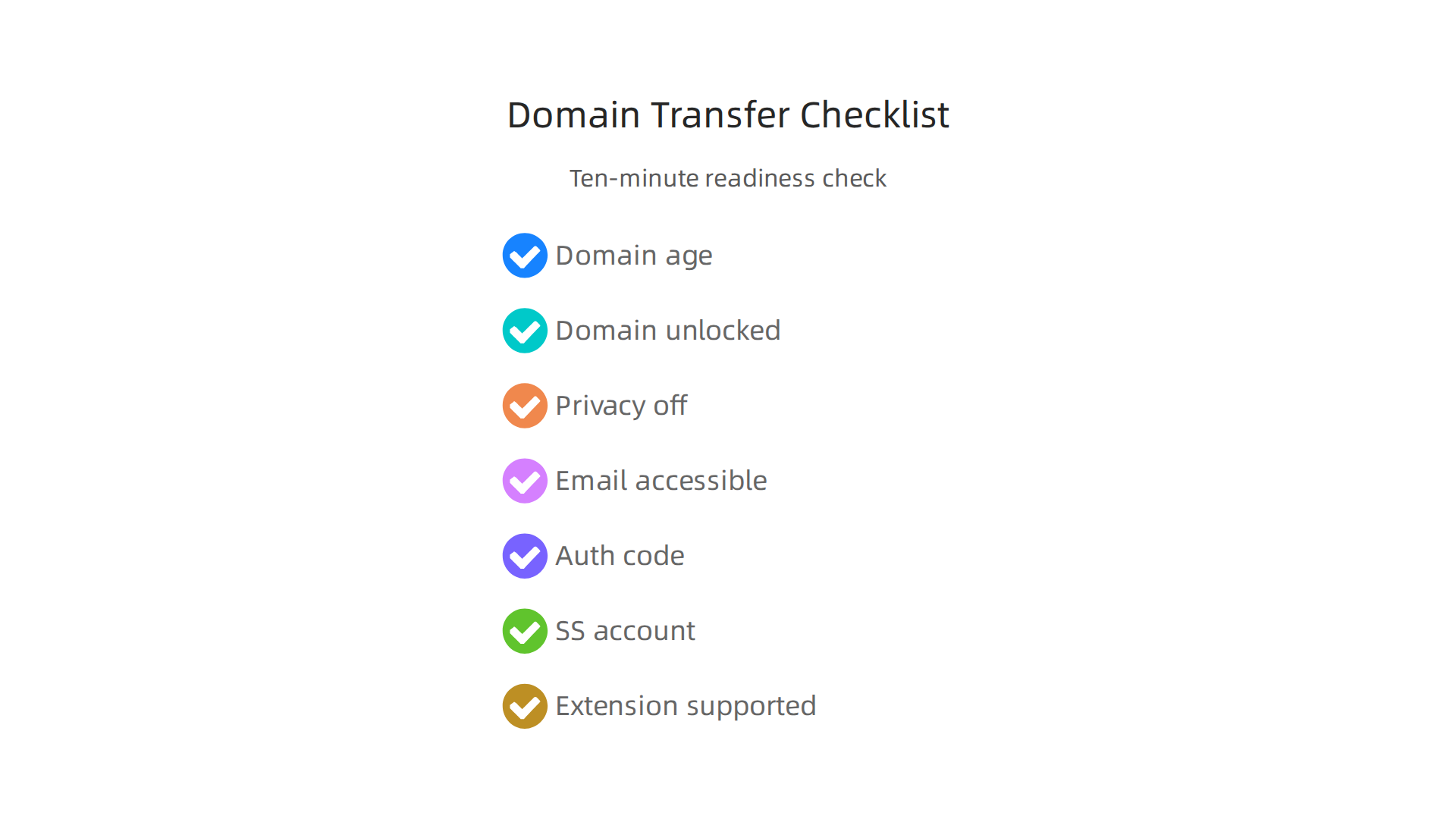
- Domain is at least 60 days old
- Domain is unlocked in GoDaddy settings
- Privacy protection is turned off
- Registrant email is accessible and up to date
- Authorization code is obtained and saved
- Squarespace account is active and funded
- Domain extension is supported by Squarespace
Take ten minutes to run through this list. It saves you from hitting a wall mid transfer. When everything is ready, you can move to the next step with confidence.
Step-by-Step: Transferring Your Domain from GoDaddy to Squarespace
Your checklist is done. Now it is time to actually move the domain. This process takes a few minutes on your end, and then about five to seven days for the transfer to fully complete. Do not worry. Most of that time is waiting, not work.
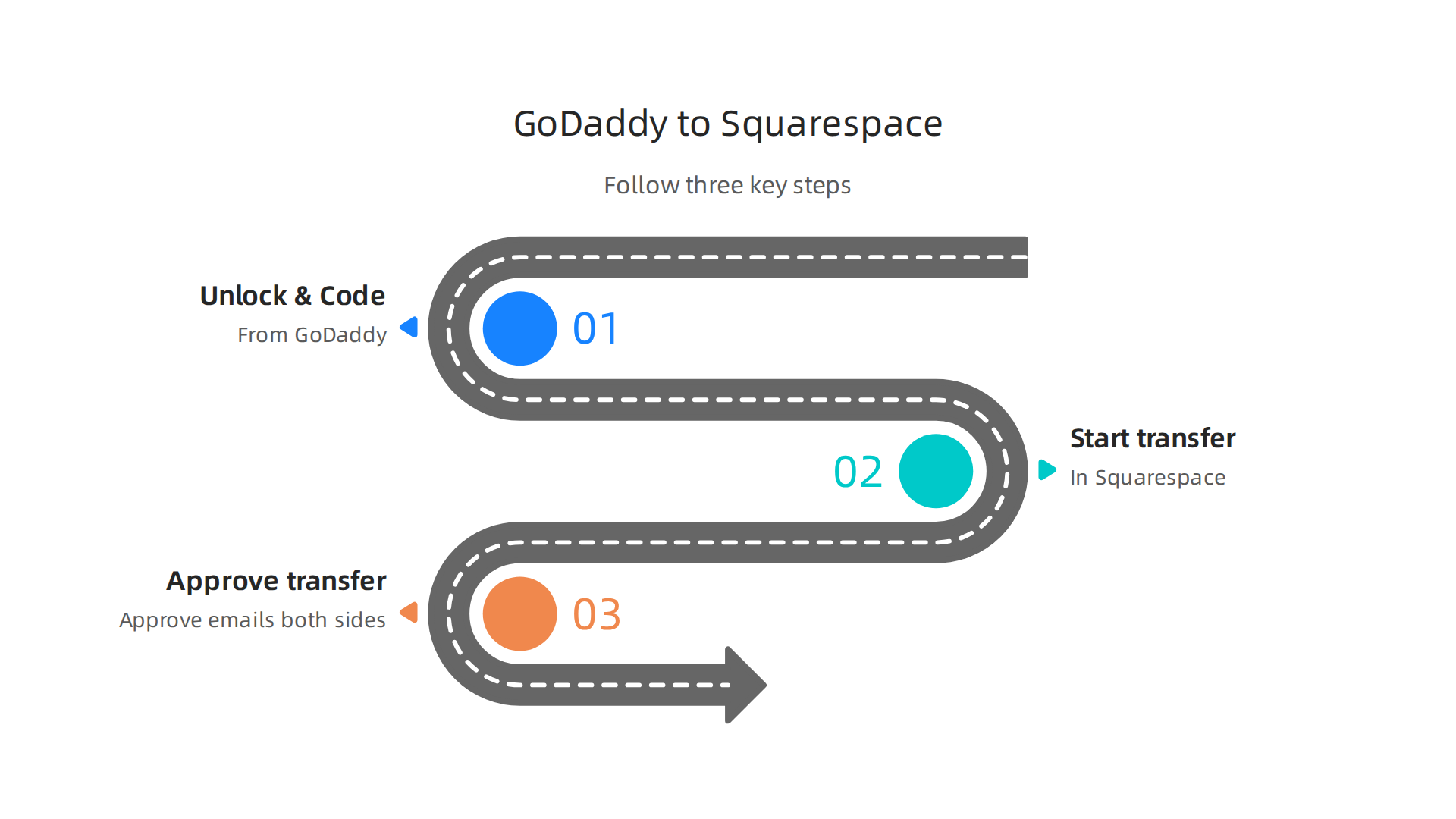
Step 1: Unlock Your Domain and Get the Authorization Code at GoDaddy
Log into your GoDaddy account. Go to your domain settings. You need to do two things here.
First, unlock the domain. Look for a toggle or switch that says "Domain Lock" or "Transfer Lock." Turn it off. If it stays locked, the transfer will fail. The official Squarespace support page for transferring domains shows you exactly where this setting lives.
Second, request the authorization code. This is also called an EPP code or transfer key. GoDaddy will email it to the registrant email on your account. You can also find it in your domain settings dashboard. GoDaddy’s own domain transfer guide confirms that you need this code for any transfer.
Keep that code safe. You will paste it into Squarespace in the next step.
Step 2: Start the Transfer Inside Squarespace
Now move to your Squarespace account. Go to the Domains panel. Choose the option to transfer a domain to Squarespace.

Squarespace will ask for the authorization code. Paste the code you got from GoDaddy. Then it will check if your domain is eligible. If you followed the preparation steps, everything should pass.
Next, you will pay the transfer fee. This fee includes an extra year of registration for your domain. So your domain expiration date will push forward by a year after the transfer completes. That is a nice bonus.
Squarespace will then send you a confirmation email. Open it and click the approval link. This step matters a lot. If you do not approve, the transfer stalls. The Squarespace support page walks through each stage of this approval process.
Step 3: Approve the Transfer at GoDaddy Too
Here is the part that trips people up. GoDaddy also sends a confirmation email about the outgoing transfer. You need to respond to that email or approve it through your GoDaddy dashboard. If you ignore it, GoDaddy will hold the transfer for the full five to seven day window.
Log back into GoDaddy. Look for a pending transfer notice. Click to approve or release the domain. This speeds things up significantly. Without this step, the transfer can take the full week. With it, the process can finish in a day or two.
Once you approve on both sides, you just wait. Squarespace will notify you when the domain is fully under their management. At that point, your transfer domain name from godaddy to squarespace process is complete.
If you are worried about traffic or rankings during this switch, the guide on how to transfer ownership of domain name godaddy without losing seo covers exactly how to protect your search visibility while the transfer finishes.
Three simple steps. Unlock and grab the code. Start the transfer in Squarespace. Approve the emails from both sides. That is all there is to it.
Troubleshooting Common Domain Transfer Issues
Even if you follow every step exactly, domain transfers can sometimes hit a snag. Do not panic. Almost every problem has a simple fix. Here are the most common issues people run into when they try a transfer domain name from godaddy to squarespace and how to solve them.

Your Transfer Is Stuck or Has Stopped
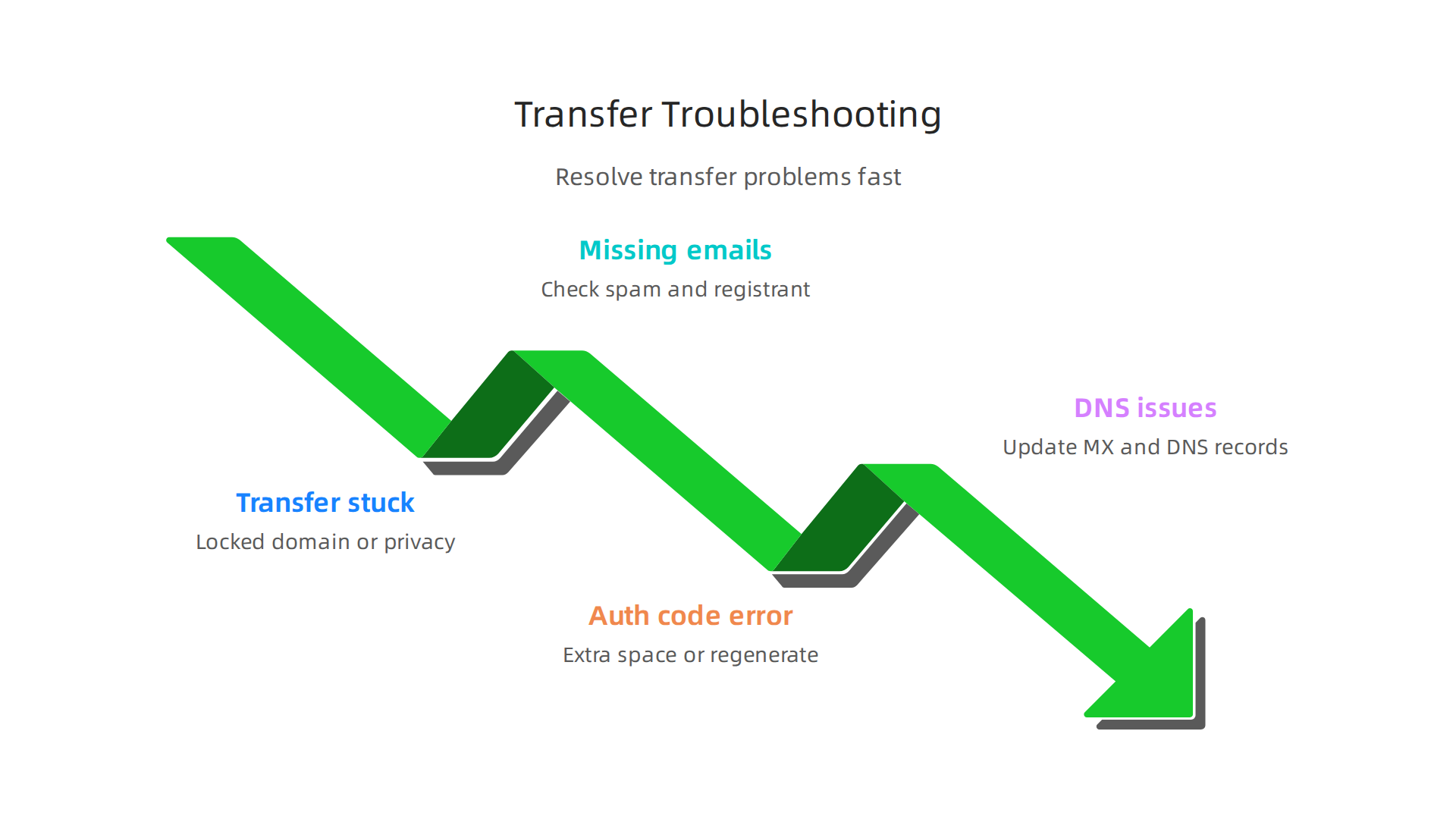
The most frequent cause of a stalled transfer is a locked domain. GoDaddy locks domains by default to prevent unauthorized moves. If you see a message saying "Domain is locked" inside Squarespace, you need to go back to GoDaddy and double check that the lock is actually off. The Squarespace support page on domain transfers explains that this one setting blocks everything.
Another hidden cause is domain privacy protection. GoDaddy often enables this automatically. The privacy service hides your personal contact information from the public WHOIS database. But it also hides it from Squarespace during the transfer. Go to your domain settings in GoDaddy and turn off privacy protection temporarily. Once the transfer finishes, you can turn it back on with your new registrar. The official Squarespace troubleshooting guide for domain transfers lists privacy protection as a key thing to check.
Missing Email Verification Emails
Both GoDaddy and Squarespace send you confirmation emails during the transfer. If you do not see them, check your spam folder first. Whitelist the email addresses from both registrars.
If the email still does not arrive, the problem is often the registrant email on your GoDaddy account. That email address must be current and accessible. Log into GoDaddy and verify your contact information. If it is an old email you no longer use, update it. Then request a new authorization code and start the Squarespace transfer again. This step is critical. Without the email approval, the squarespace domain registration process cannot move forward.
Authorization Code Errors
You paste the EPP code into Squarespace and get an error. The usual culprit is an extra space at the beginning or end of the code. Copy and paste carefully. If the error continues, regenerate a fresh authorization code inside GoDaddy. Old codes or codes that have been used once will not work. Getting a new code only takes a minute.
DNS and Email Problems After Transfer
Sometimes after a transfer domain from godaddy to namecheap or to Squarespace, your website loads but your email stops working. This happens when the DNS settings do not carry over correctly. You need to set up email forwarding or update your mail exchanger (MX) records inside the new Squarespace domain dashboard. If you run into this, the Microsoft community discussion on DNS issues shows that fixing the DNS records usually solves it.
For a deeper look at how to keep your traffic and rankings safe during any registrar switch, read the guide on transferring ownership of a domain name without losing SEO. It walks through the exact settings that protect your search visibility.
Most transfer problems come down to a locked domain, a hidden privacy setting, or a missing email. Check those three things first and you will get unstuck fast.
Post-Transfer: DNS, Email, and SSL Configuration
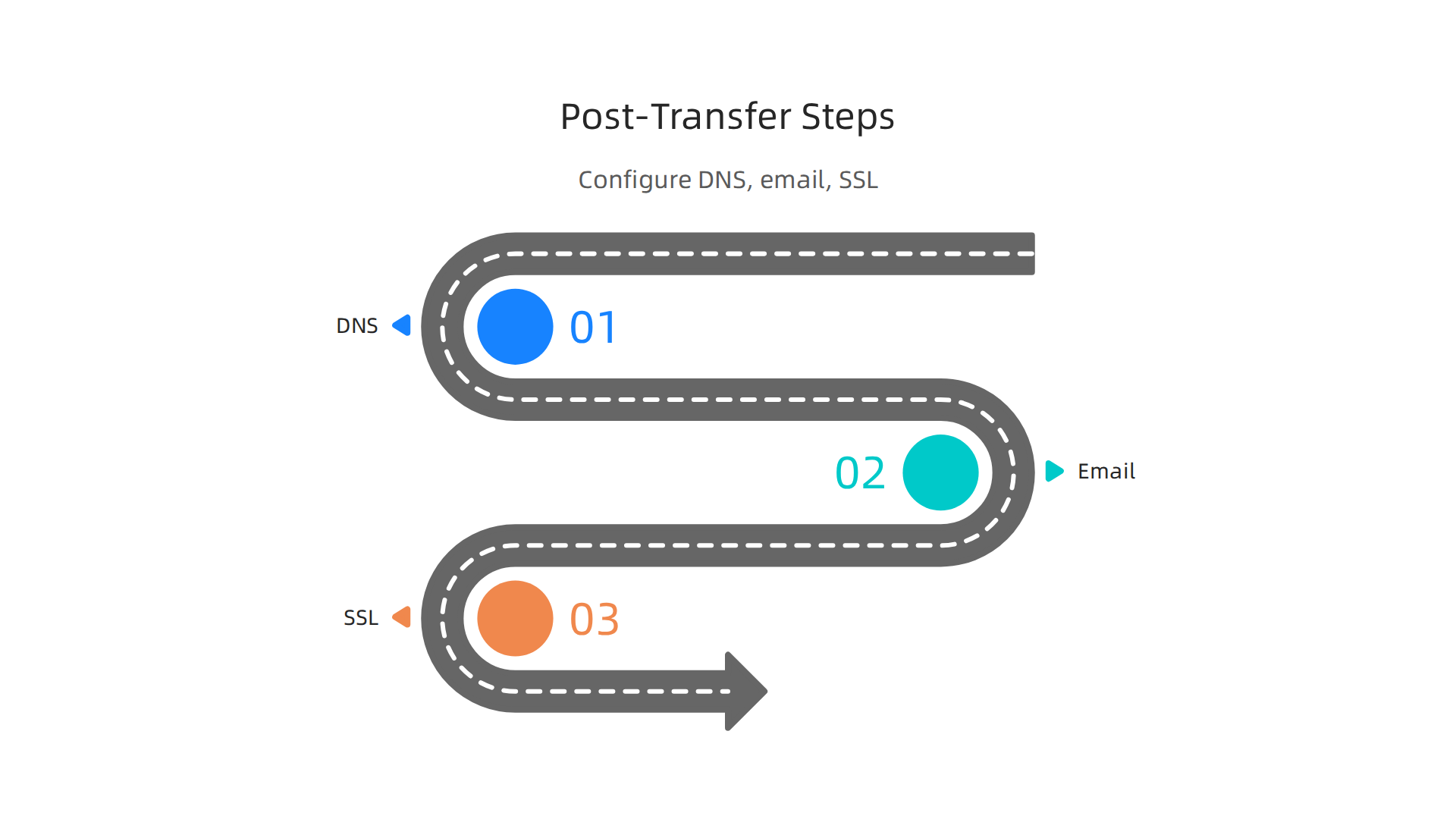
Okay, your domain is officially inside Squarespace. Nice work. But moving your transfer domain name from godaddy to squarespace is just the beginning. You still need to set up three big things: DNS, email, and SSL. Do them in this order and you will avoid most post-transfer headaches.
Your Big DNS Decision
First, you need to decide how to handle your DNS records. You have two good options.
Option one: Keep your old nameservers. If you use Cloudflare or another third party for DNS, you can leave everything as is. Your domain just connects to Squarespace through those servers. The process is simple. Follow the guide on Connecting a third-party domain to your Squarespace site to set this up correctly.
Option two: Switch fully to Squarespace DNS. This is the simpler route. Everything lives in one dashboard. You do not have to jump between accounts. The Squarespace DNS settings guide shows you exactly how to add and manage your records.
Before you change anything, take a screenshot of your old DNS settings. Trust me, this saves you if something breaks.
Protecting Your Email
This is where most people get stuck. Your email does not automatically follow your domain. Your MX records (the records that route your email) often disappear during the transfer.
If you used GoDaddy Workspace or Office 365, you need to recreate those MX records inside your new DNS dashboard. One user on the Microsoft community forum described exactly this problem. Their email stopped working because the DNS settings did not transfer properly. The fix was updating the MX records by hand.
If you want to switch to a new email provider like Google Workspace, now is the perfect time. Just update the MX records to point to the new service.
SSL and Final Testing
Squarespace gives you a free SSL certificate with every site. This puts that secure padlock icon next to your web address.
The SSL usually turns on within a few hours. Sometimes it takes up to 48 hours. Do not panic if your site shows a "Not Secure" warning at first. Wait and check again later.
Once everything is live, run through a full test. Click every link. Submit your contact form. Try to place a test order if you have a store. Make sure your squarespace domain registration points to the right website.
For a deeper look at keeping your search rankings safe during any change, read the guide on transferring ownership of a domain name without losing SEO.
Take it one step at a time. DNS first. Email second. SSL third. Do those well and your site will run smoothly in 2026 and beyond.
Time and Cost Considerations for Your Domain Transfer
Now that you have handled DNS, email, and SSL, let’s talk about two big factors: how long this takes and what it costs. Knowing these details ahead of time will help you plan and avoid surprises.

How Long the Transfer Actually Takes
Most domain transfers finish within 5 to 7 days. But sometimes the process can stretch up to 15 days. This depends on your old registrar and how quickly you respond to emails. Squarespace’s own help center confirms that "the transfer process can take up to 15 days to complete" for outgoing transfers, and the same timeline applies when moving your transfer domain name from godaddy to squarespace.
To keep your site up during this window, plan for overlap. Do not cancel your GoDaddy account early. Keep both registrars active until you see the domain appear in your Squarespace dashboard. This way, your website and email stay live even if the transfer has a small delay.
What You Will Pay
Here is the good news: the transfer itself is free. But ICANN, the organization that manages domain names, requires a one-year extension of your registration when you move a domain. So you will pay for that year through Squarespace. According to the official Squarespace billing guide, "the transfer is free, but ICANN requires a one-year extension of your domain registration, which you’ll purchase through Squarespace."
What about GoDaddy? When you transfer out, GoDaddy usually refunds the unused portion of your current registration year. Check your GoDaddy account for details. But keep in mind that this refund might take a few weeks to process.
One flat transfer fee per domain is typical. The cost of that one-year extension through Squarespace is usually similar to what you would pay for a regular renewal. So you are not losing money. You are just paying a year ahead.
Weighing the Benefits Against Short Disruption
Moving your squarespace domain registration early has big benefits. You get one dashboard, one renewal date, and no more split billing. But the transfer window can cause a few hours of downtime for your site or email if you do not handle DNS carefully.
If you run an affiliate site, think about your traffic patterns. Avoid transferring right before a big sales event or product launch. Instead, pick a slow week. That way, if something takes a little longer, you will not lose sales.
One smart move is to use a domain expiry checker to track your old and new renewal dates. This helps you avoid double payments or accidental lapses.
The bottom line: plan your transfer for a calm period, keep both accounts active until you confirm the move, and budget for the one-year extension as part of your normal business costs. Done right, this one-time effort will save you time and money every year going forward.
Post-Transfer Optimization for Affiliate Marketers
Your domain is now sitting inside Squarespace. The hard part is done. But here is the thing: moving your domain is just step one. The real money comes from what you do next. For affiliate marketers, this is your chance to make the platform work for you.
Use Squarespace’s SEO and Analytics Tools
Squarespace comes with built-in SEO features that are easy to use. You can edit page titles, meta descriptions, and URL slugs right from the page editor. There is no need for extra plugins. The platform also gives you clean analytics. You will see which pages get traffic, where visitors come from, and which affiliate links get clicks. This data helps you double down on what works.
Squarespace’s own help center notes that after you complete a transfer domain name from godaddy to squarespace, you own your domain registration through them. That means you can manage everything from one dashboard, including your SEO settings.
Re-Introduce Your Affiliate Products and Test Links
Now is the perfect time to bring your affiliate products back into the spotlight. For example, if you promote pet activity trackers, you might write a new review or update an old one. Let us say you are an affiliate for Fitbark pet trackers. Check every affiliate link to make sure it still works and points to the right place. A broken link means a lost sale.
Affiliate marketing best practices from Squarespace’s own blog suggest keeping your audience’s needs first. So update your calls to action and make sure your tracking links are fresh. Testing after a domain move is critical because DNS changes can sometimes break redirects.
Create Content That Drives Organic Traffic
Your site is now on a platform that rewards consistent content. Use Squarespace’s blogging tools to publish pages that answer real questions from your audience. Think about what they search for and build content around those topics. Each page becomes a landing spot for organic visitors.
If you need ideas for what to write, check out our guide on top affiliate marketing programs in 2026 that pay real commissions. It will help you find programs that align with the content you create.
The future of affiliate marketing leans heavily on SEO and high-converting landing pages. By optimizing your Squarespace site now, you turn your completed domain transfer into a steady income machine.

Take a few hours this week to set up your SEO, test your links, and start publishing. Your future self will thank you.
Summary
This guide explains how to transfer a domain from GoDaddy to Squarespace in clear, practical steps so you can manage your site and registration in one place. It covers eligibility rules (60‑day limit), unlocking the domain, disabling privacy, obtaining the authorization (EPP) code, and starting the transfer inside Squarespace. The article walks through approving confirmation emails on both registrars, common problems (locked domains, missing emails, EPP errors), and how to fix them. After the transfer it shows how to handle DNS decisions, restore or update MX records for email, and enable SSL. You’ll also get timing and cost expectations (usually 5–7 days, up to 15; one‑year extension fee through Squarespace) and practical tips to protect SEO and optimize your Squarespace site for affiliate income.